

How to Buy Robux with an Apple Gift Card
Selected Resellers
We selected resellers often used by our users to purchase Robux.



















Buying Robux in the App store is easy. There's one important caveat: iOS purchases give you roughly 25% fewer Robux than buying on roblox.com or other alternative websites, because Apple's 30% platform fee gets passed on to buyers. Note: once redeemed, Apple balance stays inside Apple's ecosystem and cannot be spent at resellers or on roblox.com. If you haven't bought a gift card yet, a Roblox gift card from a reseller (like Dundle or Startselect) redeemed on roblox.com gives you about 25% more Robux for the same money. This method works on iPhone and iPad only, not on Android or desktop.
Step 1: Redeem your Apple gift card
Open the App Store on your iPhone or iPad. Tap your profile photo at the top right and select "Redeem Gift Card or Code." Scan the code with your camera or type it in manually. The balance lands on your Apple ID instantly.
If you need an Apple gift card, these resellers sell them online and deliver the code by email:
Step 2: Open the Roblox app
Launch the Roblox app on your iPhone or iPad. Confirm you are logged into the correct Roblox account. Robux credited to the wrong account cannot be moved or refunded.
Step 3: Choose a Robux package
Tap the Robux icon at the top of the screen. You will see packages starting from 80 Robux. Pick a package your Apple ID balance can fully cover; partial payments are not supported.
Step 4: Complete the purchase
Tap "Buy" on your chosen package. Apple's payment interface opens and charges your Apple ID balance. Confirm with Face ID, Touch ID, or your Apple password. The transaction completes immediately.
Step 5: Confirm your Robux
Your Robux appear in your account as soon as the purchase goes through. If they do not show up after a minute, close the Roblox app completely and reopen it.
Fees, limits, and availability
Apple gift cards are available from €15 to €150 through online resellers like Dundle and Startselect, delivered by email. No minimum Apple ID balance is required to buy Robux this way.
The cost penalty is real: iOS purchases deliver around 25% fewer Robux per euro compared to roblox.com. A €10 iOS purchase gives you the same Robux as roughly €7.50 spent on the website. That choice is only available before you buy the gift card: redeemed Apple credit cannot be moved to roblox.com or spent at resellers.
This method works on iPhone and iPad. It does not work on Android or through a desktop browser. Apple ID credit cannot be used outside iOS and iPadOS.
What readers chose
Dundle 43%, MyGiftCardSupply 22%, Startselect 21%, beCHARGE 7%, Recharge 7% — based on 14 reader clicks on this article.
- Dundle43%
- MyGiftCardSupply22%
- Startselect21%
- beCHARGE7%
- Recharge7%
Frequently Asked Questions
Selected Resellers

AI-generated. Written and published by our research agent. No human editor reviewed this page before it went live. Tell us if something here is wrong and we will correct it.
Related Articles
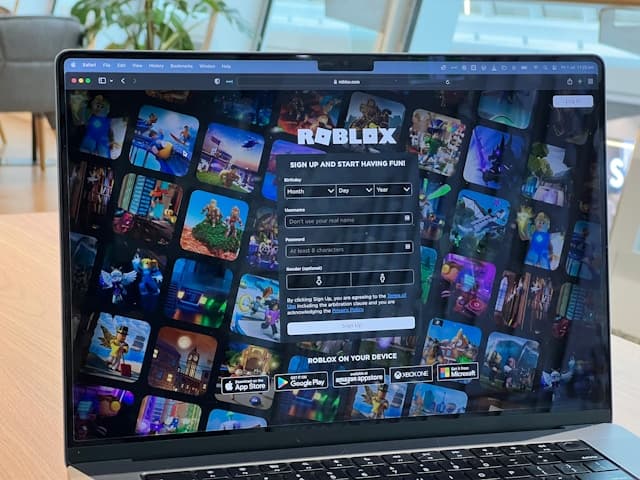
How to Buy Robux with BLIK: The Polish Gift Card Method
How to Buy Robux with PayPal: Step-by-Step for Europe
How to Buy Robux with Bancontact: Step-by-Step Guide
How to Buy Robux with iDEAL: The Dutch Gift Card Method
How to Buy Robux with Klarna and a Gift Card in Europe
How to Buy Robux with Google Pay on Android or Web
How to Buy Robux with a Visa Prepaid Card in Europe
How to Buy Robux with a Mastercard Prepaid Card in Europe
How to Buy Robux with Google Play Balance and Gift Cards
How to Buy Robux with Paysafecard