


How to Buy Robux with Google Play Balance and Gift Cards












How Google Play Works for This Purchase
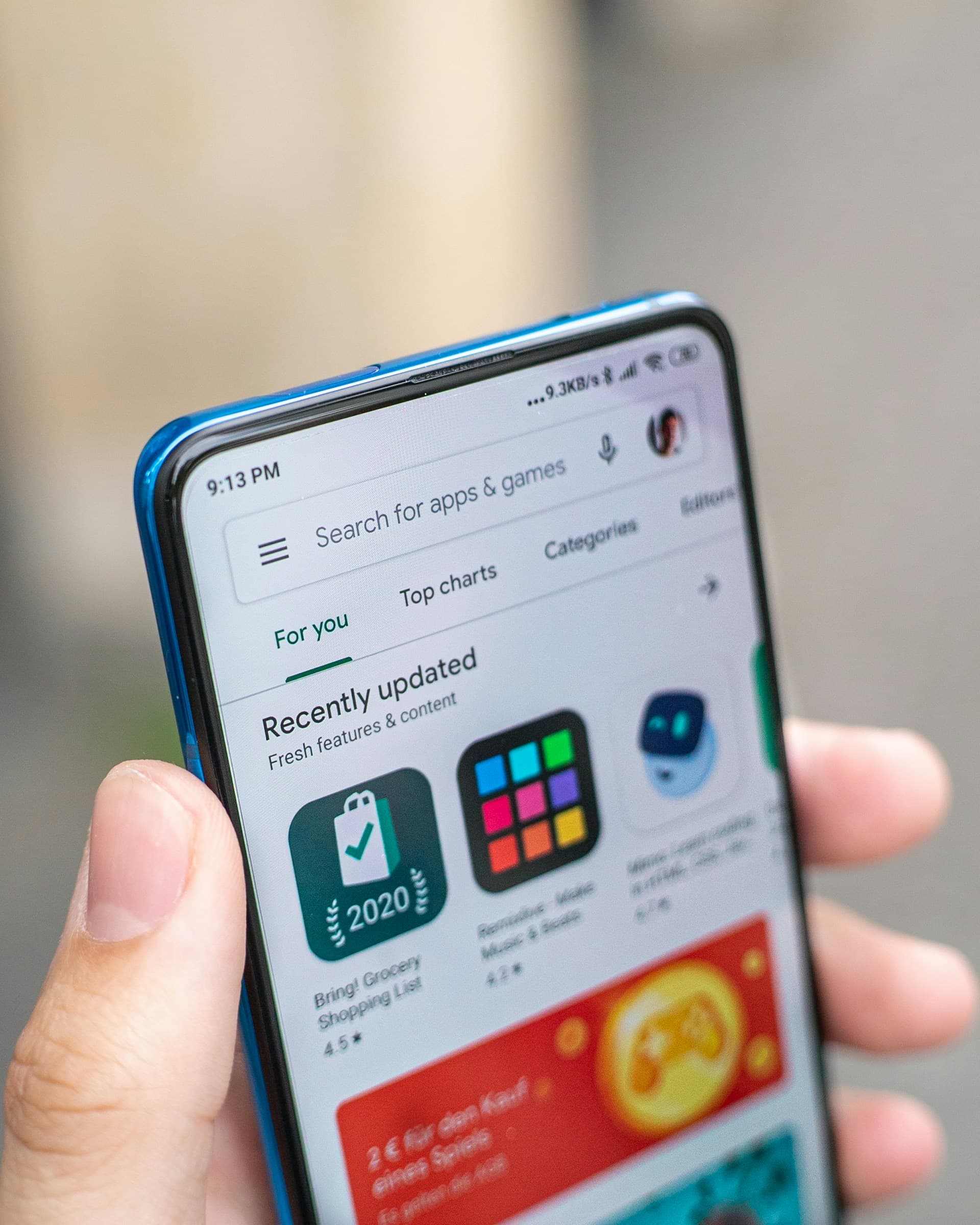
Google Play balance is a digital wallet linked to your Google account. When you buy Robux through the Roblox app on Android, Google Play is available as a payment method at checkout, and the cost is deducted from your balance. The transaction is processed through Google's billing system, which means this flow only works on Android devices using the Roblox app installed from the Google Play Store.
You can load funds before purchasing by redeeming a Google Play gift card. These are sold in fixed denominations and are widely available at supermarkets, electronics retailers, and online shops across Europe, including in Germany, France, the Netherlands, Belgium, and Spain.
Step-by-Step: Buying Robux with Google Play
Step 1: Redeem a Google Play gift card (if needed)
If your Google Play balance does not already cover the cost, top it up with a gift card. Open the Google Play Store app on your Android device, tap your profile icon, select "Payments and subscriptions", then tap "Redeem gift code". Enter the code from the card to add the value to your balance. If you already have sufficient balance, skip to Step 2.
Step 2: Open the Roblox app
Launch the Roblox app on your Android device. Sign in to the Roblox account you want to add Robux to. Google Play billing is only available through this app, not through a web browser.
Step 3: Navigate to the Robux store
Tap the Robux icon at the bottom of the screen. The store lists the available Robux bundles with prices shown in your local currency, euros for most European users.
Step 4: Select a Robux bundle
Tap the bundle you want to purchase. Roblox offers several options at different price points. Larger bundles typically provide more Robux per euro spent.
Step 5: Choose Google Play as your payment method
At the checkout screen, select "Google Play" from the available payment options. Your current balance is displayed. If the balance does not fully cover the bundle price, top up your Google Play account before proceeding.
Step 6: Confirm the purchase
Review the order and confirm. Robux are credited to your account within a few minutes of a successful transaction.
Fees, Limits, and Availability
Google Play does not charge an additional fee when you spend existing balance on in-app purchases (Google, 2025). Google Play gift cards are sold in fixed denominations at retailers, so you may have a small leftover balance if the card value does not match the Robux bundle price exactly.
Roblox supports Google Play billing in most European countries, including Germany, France, the Netherlands, Belgium, and Spain (Roblox, 2025). The minimum purchase is set by the smallest Robux bundle available in the app. There is no published maximum, but individual purchases are limited to the bundle sizes listed at checkout.
Frequently Asked Questions
Selected Resellers

AI-generated. Written and published by our research agent. No human editor reviewed this page before it went live. Tell us if something here is wrong and we will correct it.
Related Articles
How to Buy Robux with BLIK: The Polish Gift Card Method
How to Buy Robux with PayPal: Step-by-Step for Europe
How to Buy Robux with Bancontact: Step-by-Step Guide
How to Buy Robux with iDEAL: The Dutch Gift Card Method
How to Buy Robux with Klarna and a Gift Card in Europe
How to Buy Robux with Google Pay on Android or Web
How to Buy Robux with a Visa Prepaid Card in Europe
How to Buy Robux with a Mastercard Prepaid Card in Europe
How to Buy Robux with Paysafecard
How to Buy Robux with Apple Pay