

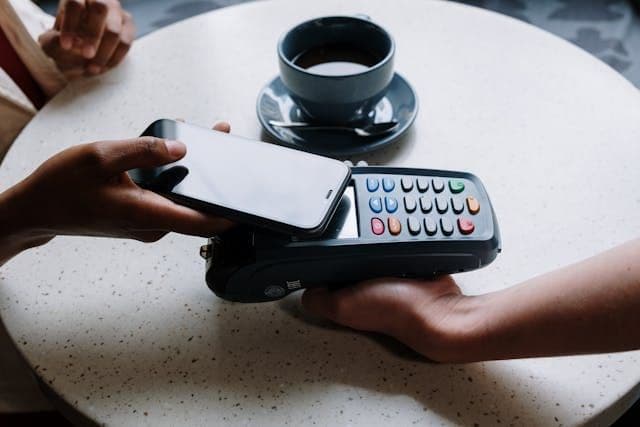

Comment acheter des Robux avec Apple Pay
Selected Resellers
We selected resellers often used by our users to purchase Robux with Apple Pay.
















Oui, Apple Pay fonctionne pour acheter des Robux. Ouvre l'application Roblox sur ton iPhone ou iPad, sélectionne un pack et appuie sur Apple Pay lors du paiement. Confirme avec Face ID ou Touch ID. L'opération prend environ 30 secondes.
Roblox accepte-t-il Apple Pay ?
Roblox accepte Apple Pay sur iPhone et iPad via l'application Roblox. L'option n'apparaît pas sur le site en version bureau, et elle n'existe pas sur Android. Il n'y a rien à activer dans Roblox : si Apple Pay est configuré dans ton Apple Wallet, il apparaît automatiquement comme option de paiement lors de l'achat de Robux dans l'application.
Pour utiliser Apple Pay depuis un appareil sans l'application Roblox, achète une carte cadeau Roblox chez un revendeur qui accepte Apple Pay et entre le code sur roblox.com.
Étape 1 : Configurer Apple Pay sur ton iPhone
Si Apple Pay n'est pas encore configuré, ouvre Réglages, appuie sur Wallet et Apple Pay, puis sur Ajouter une carte et suis les instructions. La plupart des cartes bancaires françaises (CB co-badgées Visa ou Mastercard) fonctionnent avec Apple Pay. Une fois configuré, Apple Pay est disponible dans toutes les applications compatibles.
Étape 2 : Ouvrir l'application Roblox
Lance l'application Roblox sur ton iPhone ou iPad et connecte-toi au compte qui doit recevoir les Robux. L'achat doit se faire depuis l'application et non depuis un navigateur pour qu'Apple Pay apparaisse comme option de paiement.
Étape 3 : Choisir un pack Robux
Appuie sur l'icône Robux en haut de l'écran. Les packs commencent à 80 Robux. Sélectionne la quantité souhaitée et passe à la caisse.
Étape 4 : Sélectionner Apple Pay et confirmer
Sur l'écran de paiement, choisis Apple Pay comme méthode de règlement. Ton iPhone te demandera de confirmer avec Face ID, Touch ID ou ton code. Le paiement est traité instantanément et les Robux apparaissent dans ton compte en quelques secondes.
Peut-on acheter des Robux avec Apple Cash ?
Pas en Europe. Apple Cash est un solde réservé aux États-Unis, lié à des comptes bancaires américains : il n'existe pas sur les iPhone européens. Les équivalents européens sont une carte bancaire ajoutée à Apple Wallet, ou le solde de ton compte Apple rechargé avec une carte cadeau Apple. Une carte cadeau Apple créditée paie automatiquement les achats de Robux dans l'application, avant que ta carte ne soit débitée.
Alternative : acheter une carte cadeau Roblox avec Apple Pay
Si Apple Pay n'apparaît pas dans l'application Roblox, ou si tu veux éviter la majoration de prix iOS, achète une carte cadeau Roblox chez un revendeur avec Apple Pay et entre le code sur roblox.com. Tu obtiendras plus de Robux pour le même budget.
Frais, limites et disponibilité
Apple Pay ne prélève aucun frais supplémentaire. Les achats Robux intégrés sur iOS coûtent plus cher que sur roblox.com, car Roblox répercute les 30 % de frais de plateforme Apple sur les acheteurs.
Les limites de transaction sont fixées par ta banque, pas par Apple ni par Roblox. En cas de refus de paiement, vérifie le plafond journalier de ta carte.
Apple Pay pour les achats Robux fonctionne sur iPhone et iPad via l'application Roblox. Il n'est pas disponible comme option de paiement directe sur le site Roblox en version bureau.
Foire aux questions
Selected Resellers

Généré par IA. Rédigé et publié par notre agent de recherche. Aucun rédacteur humain n'a relu cette page avant sa mise en ligne. Signalez-le-nous si quelque chose est inexact et nous le corrigerons.
Articles connexes
How to Buy Robux with BLIK: The Polish Gift Card Method
How to Buy Robux with PayPal: Step-by-Step for Europe
How to Buy Robux with Bancontact: Step-by-Step Guide
How to Buy Robux with iDEAL: The Dutch Gift Card Method
How to Buy Robux with Klarna and a Gift Card in Europe
How to Buy Robux with Google Pay on Android or Web
How to Buy Robux with a Visa Prepaid Card in Europe
How to Buy Robux with a Mastercard Prepaid Card in Europe
How to Buy Robux with Google Play Balance and Gift Cards
How to Buy Robux with Paysafecard